What Is DAX in Power BI: Measures vs Columns
TL;DR — decision table before writing a single formula
| Question | Use this |
|---|---|
| Do I need to clean or transform data before loading it? | Power Query (M) |
| Do I need a KPI or metric that changes with filters? | DAX Measure |
| Do I need a per-row value to filter or slice? | DAX Calculated Column |
| Do I need a per-row value to display in a table or visual? | DAX Measure (almost always) |
| Does the logic depend on values in other rows of the same table? | DAX Measure with CALCULATE/FILTER |
| Will the result be used as a key in a table relationship? | DAX Calculated Column |
When in doubt, start with a measure. It’s easier to change later and uses less memory.
What is DAX and why does it exist?
DAX (Data Analysis Expressions) is Power BI’s formula language for computing metrics over relational data models. It also runs in Power Pivot, SQL Server Analysis Services Tabular, and Azure Analysis Services.
The difference from Excel isn’t the syntax (which is similar), but the execution model: DAX operates over entire columns and responds dynamically to filter context — the set of active filters at any point in the report. That’s what makes SUM(Sales[Amount]) return a different number depending on the selected year or category, without you writing any explicit condition.
-- In Excel:          =SUM(A1:A10)
-- In DAX (measure):  Total Sales = SUM(Sales[Amount])
They look alike. The difference is that the DAX measure automatically responds to whatever filter is active in the report at evaluation time.
DAX vs Power Query: the most common confusion
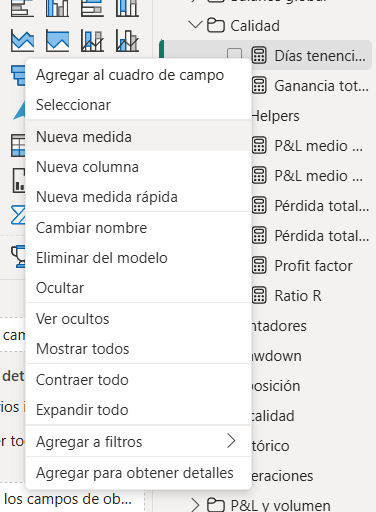
![The Power Query Editor opens from the ribbon; the DAX formula bar edits measures like AVERAGE(Operaciones[Dias tenencia])](/images/posts/dax-editor-power-query.png)
| Power Query (M) | DAX | |
|---|---|---|
| Purpose | Transform and clean data | Calculate metrics and KPIs |
| When it runs | When loading or refreshing data | When rendering each visual |
| Where you use it | Power Query Editor | Measures and calculated columns panel |
| Excel analogy | Excel’s Power Query | Cell formulas |
| Affects the model | Yes (changes rows and columns) | No (adds calculations on top) |
The separation rule
Power Query: everything that happens before data enters the model.
- Convert types (text → date)
- Clean column names
- Combine tables (merge/append)
- Filter rows you don’t need
DAX: everything you calculate after.
- Totals, averages, counts
- Time comparisons (vs last year, vs budget)
- Percentages and ratios
- Business KPIs
Practical example: you have a “Date” column in text format → Power Query to convert it to a real date type. You want to calculate last month’s sales → DAX to create the measure.
Measures vs Calculated Columns: why memory matters
This is the most consequential decision you’ll make in DAX, and the one with the biggest performance impact.
DAX Measures: they don’t exist in memory until a visual requests them. They’re computed on the fly based on the active filter context and disappear when the visual is done rendering.
Total Sales = SUM(Sales[Amount])Calculated Columns: they materialize row by row during data refresh and are stored in VertiPaq’s compressed memory. They occupy real space in the model — space VertiPaq must compress, keep in RAM, and update on every refresh.
Margin = Sales[Amount] - Sales[Cost]The reason calculated columns are more expensive comes down to how VertiPaq stores data: it works column-by-column using dictionary compression. Adding a calculated column means adding an entire column to the storage engine. If that column has high cardinality (many distinct values), compression is poor and memory consumption rises significantly. The mechanics of how VertiPaq compresses data and why cardinality matters are covered in the VertiPaq compression and model optimization post.
The golden rule
Use measures whenever you can. Only use calculated columns when:
- You need the value to filter or segment (slicers)
- The calculation depends on values from the same row (accessing adjacent columns)
- You need to use the result in a table relationship
How does filter context work?
Filter context is the set of conditions that determine which rows are included in a DAX calculation. It’s what makes the same measure return different values in each cell of a table or each segment of a chart.
When you place [Total Sales] in a bar chart by product category, DAX evaluates that measure once per category — with that category’s filter active. There’s no explicit loop in your code: the engine handles it.
Total Sales = SUM(Sales[Amount])
-- Returns a different value in each table cell
-- depending on the filters active at that point in the report
The most common beginner mistake is assuming a measure always returns the same number. If the result looks wrong, 80% of the time the issue is in the filter context — page filters, visual filters, or relationships propagating unexpected filters. The diagnostic process is covered in the Power BI debugging guide.
CALCULATE is the function that lets you explicitly modify that context from inside a measure.
The 5 DAX functions you need to master
You don’t need to know all 200+ DAX functions. These 5 categories cover 80% of use cases.
1. Aggregations: SUM, AVERAGE, COUNT
Total Sales      = SUM(Sales[Amount])
Average Price    = AVERAGE(Products[Price])
Order Count      = COUNT(Sales[OrderID])
Unique Customers = DISTINCTCOUNT(Sales[CustomerID])
DISTINCTCOUNT counts unique values. Useful for counting customers, products, distinct SKUs.
2. CALCULATE: the core of DAX
The most important function. It evaluates an expression with a modified filter context.
-- Total sales ignoring any active category filter
Sales All Categories =
CALCULATE(
    SUM(Sales[Amount]),
    ALL(Products[Category])
)

-- Sales from 2025 only, regardless of the year slicer
Sales 2025 =
CALCULATE(
    SUM(Sales[Amount]),
    Calendar[Year] = 2025
)
CALCULATE always follows this flow: (1) take the expression, (2) apply the filter modifiers over the current context, (3) evaluate the expression in the new context.
Once you’re comfortable with CALCULATE, you can build advanced patterns like rotating measures to switch the metric with a slicer without adding new visuals.
3. FILTER and ALL: context control
ALL removes filters from a table or column:
-- Percentage of grand total (ignores visual filters)
% of Total =
DIVIDE(
    SUM(Sales[Amount]),
    CALCULATE(SUM(Sales[Amount]), ALL(Sales))
)
FILTER applies custom conditions by returning a filtered table:
-- Sales of premium products (price > 100)
Premium Sales =
CALCULATE(
    SUM(Sales[Amount]),
    FILTER(Products, Products[Price] > 100)
)
4. IF and SWITCH: conditionals
IF for a single condition:
Status = IF(Sales[Amount] > 1000, "Large", "Small")SWITCH(TRUE(), …) for multiple ranges (cleaner than nested IFs):
Segment =
SWITCH(
    TRUE(),
    Sales[Amount] > 10000, "Enterprise",
    Sales[Amount] > 1000,  "Medium",
    Sales[Amount] > 100,   "Small",
    "Micro"
)
SWITCH(TRUE(), ...) evaluates conditions in order and returns the first that is true.
5. RELATED and RELATEDTABLE: navigating between tables
RELATED (from the many side to the one side of a relationship):
-- In the Sales table, bring in the product's category
Category = RELATED(Products[Category])
RELATEDTABLE (from the one side to the many side):
-- In the Customers table, count their orders
Customer Orders = COUNTROWS(RELATEDTABLE(Sales))
3 DAX measures you need from day one
Measure 1: Total Sales
Total Sales = SUM(Sales[Amount])Sums all amounts. If there’s an active date filter in the report, it only sums that period.
Measure 2: Last Year’s Sales
Last Year Sales =
CALCULATE(
    [Total Sales],
    SAMEPERIODLASTYEAR(Calendar[Date])
)
Shifts the date filter context to the same period one year back.
Best practice: use a dedicated calendar table (a complete, contiguous date dimension with no gaps) related to your fact table, and mark it as a “Date table”. By default Power BI enables Auto date/time, which creates hidden date tables and makes SAMEPERIODLASTYEAR work out of the box — but it bloats the model and takes away control. Without a contiguous date table, time intelligence can return blank or throw the “only works with contiguous date selections” error when your dates have gaps.
Measure 3: Percentage of Total
% of Total =
DIVIDE(
    [Total Sales],
    CALCULATE([Total Sales], ALL(Sales)),
    0
)
ALL(Sales) removes all filters from the Sales table to compute the denominator. The third argument of DIVIDE (0) is returned if the denominator is zero.
Why DIVIDE and not /:
-- ❌ Runtime error if Target = 0
Ratio = [Sales] / [Target]

-- ✅ Returns 0 (or whatever you specify) on division by zero
Ratio = DIVIDE([Sales], [Target], 0)
Common mistakes and how to avoid them
Mistake 1: calculated columns for everything
Using a calculated column for logic that should be a measure:
-- ❌ Calculated column attempting a running total (incorrect)
Running Total =
CALCULATE(
    SUM(Sales[Amount]),
    FILTER(ALL(Sales), Sales[Date] <= EARLIER(Sales[Date]))
)
-- ✅ Correct measure for a running total
Running Total =
CALCULATE(
[Total Sales],
FILTER(
ALL(Calendar),
Calendar[Date] <= MAX(Calendar[Date])
)
)Calculated columns are evaluated row by row at refresh time. On large tables, that means longer refresh times and higher memory consumption.
Mistake 2: not understanding filter context
Filter context determines which rows enter each calculation. Assuming a measure always returns the same number is the most frequent mistake.
If a measure result looks wrong, the first step is to understand which filters are active — slicers, page filters, relationship filter propagation. The full diagnostic process is in the Power BI debugging guide.
Mistake 3: dividing without DIVIDE()
-- ❌ Runtime error if denominator is 0
Achievement = [Sales] / [Target]

-- ✅ Returns the fallback value (0 here) on division by zero
Achievement = DIVIDE([Sales], [Target], 0)
Mistake 4: ignoring model relationships
DAX operates on the relational model. If tables aren’t properly related, measures won’t propagate filters as expected. A frequent issue is that Power BI silently disables relationships when there’s ambiguity in the model.
Minimum checklist before debugging a measure that returns strange results:
- Does a relationship exist between the tables involved?
- Is it 1-to-many in the correct direction?
- Is it active (not shown as a dashed line in the model view)?
Mistake 5: unnecessary complexity
-- ❌ Overcomplicated with no reason
Total =
CALCULATE(
    SUMX(FILTER(Sales, Sales[Amount] > 0), Sales[Amount])
)

-- ✅ Equivalent and faster
Total = SUM(Sales[Amount])
Start simple. Add CALCULATE, FILTER, or SUMX only when the use case actually requires it.
DAX and Copilot: useful, but with limits
If you have access to Power BI Copilot, you can generate DAX with natural language:
Prompt: "Create a measure that calculates sales from the same period last year"Copilot generates code like:
Last Year Sales =
CALCULATE(
    SUM(Sales[Amount]),
    SAMEPERIODLASTYEAR(Calendar[Date])
)
Useful for a first draft. The problem is that Copilot doesn’t know your model: it can produce wrong table or column names, and it frequently fails with patterns involving variables (VAR) or row context transitions. If you don’t understand what it generated, you won’t be able to debug it when it breaks.
DAX functions cheat sheet
| Function | What for |
|---|---|
SUM | Sum numeric values |
AVERAGE | Average |
COUNT / COUNTA | Count rows (numeric / non-blank) |
DISTINCTCOUNT | Count unique values |
CALCULATE | Modify filter context |
FILTER | Return a filtered table |
ALL | Remove filters from table/column |
IF | Simple conditional |
SWITCH | Multiple conditional |
DIVIDE | Safe division (avoids /0 errors) |
RELATED | Get value from related table (one side) |
RELATEDTABLE | Table of related rows (many side) |
DATEADD | Shift dates by N periods |
SAMEPERIODLASTYEAR | Same period last year |
TOTALYTD | Year-to-date accumulation |
FORMAT | Format values as text |
Resources to keep learning
DAX.do — Online playground to test DAX without installing anything.
DAX Guide — Complete reference for all DAX functions with examples. By SQLBI.
SQLBI — Marco Russo and Alberto Ferrari are the definitive DAX reference. Technically precise.
“The Definitive Guide to DAX” (Marco Russo, Alberto Ferrari) — The book. 700+ pages. Not for total beginners, but the authoritative reference when you want to go deeper.
YouTube channels: SQLBI (technical depth), Guy in a Cube (more accessible), Curbal (bilingual ES/EN).
Where to start
If you’re starting with DAX, make sure you have the tool fundamentals first. We have a complete guide to learning Power BI for free that covers the environment from scratch before getting into formulas.
- Understand the difference between DAX and Power Query (see decision table at the top)
- Use measures, not calculated columns (except the three exceptions listed above)
- Master CALCULATE — it’s 50% of DAX
- Use DIVIDE() for every division
- When results don’t add up, investigate filter context first
DAX has a learning curve, especially filter context. But once it clicks, you can build advanced patterns: from rolling 12-month totals to rotating measures with a slicer. One step at a time.
FAQ — Frequently asked questions about DAX
What is the difference between DAX and M (Power Query)?
DAX computes metrics on data already loaded into the model. M transforms and cleans data before it enters the model. They aren’t interchangeable: each has its own execution moment and purpose.
When should I use a measure vs a calculated column?
Use a measure when the value must change with report filters (KPIs, totals, ratios). Use a calculated column when you need a fixed per-row value for slicers, relationships, or as input to another column.
Why does my measure return the same number in every row?
The value isn’t varying with context because you used a calculated column when it should be a measure, or because there’s an ALL() or REMOVEFILTERS() eliminating the active filters. Review the CALCULATE logic in the measure.
What exactly is filter context in DAX?
It’s the set of conditions that determine which rows are included in a calculation at any given moment. When you place a measure in a table or chart, Power BI evaluates that measure once per cell/segment with that cell’s filter active. CALCULATE lets you modify that context from inside the formula.
Why doesn’t SAMEPERIODLASTYEAR work in my model?
Almost always the date table. Time intelligence needs a complete, contiguous calendar (every day, no gaps). Power BI hides this with Auto date/time (on by default); the moment you turn it off or use a fact-table date column with gaps, SAMEPERIODLASTYEAR returns blank or throws “only works with contiguous date selections”. Fix: create a dedicated calendar table, relate it, and mark it as a “Date table”.
Can DAX replace SQL?
They’re not equivalent. DAX operates on VertiPaq’s in-memory tabular model. SQL operates on disk-based relational databases. DAX is faster for interactive analysis on pre-loaded data; SQL is better suited for extractions, complex joins, and transformations before loading.
What exactly does CALCULATE do?
CALCULATE evaluates a DAX expression with a modified filter context. It takes the currently active filters, applies the modifier arguments you pass (which can add, remove, or replace filters), and evaluates the expression in that new context. It’s the foundation of almost every advanced DAX pattern.
Do calculated columns slow down data refresh?
Yes. They materialize row by row during refresh. In large tables, many calculated columns add up to longer processing times and a larger in-memory model footprint. If a calculated column can become a measure, convert it.
Consulting
Got a similar problem with Power BI & DAX?
I can help. Tell me what you're dealing with and I'll give you an honest diagnosis — no commitment.
See consulting →You might also like
Rotating Measures in DAX: When your data won't stay put
Products that change categories break your DAX calculations. Here's the pattern to handle rotating dimensions correctly in Power BI.
Rolling 12 months in DAX: the two-calendar solution
How to calculate rolling 12 months in Power BI correctly. Step-by-step DAX tutorial.
VertiPaq for humans: how Power BI compresses your data
Value Encoding, Dictionary Encoding, and RLE explained without the academia. Why your model is 2GB when it should be 200MB.